
What to Do When a Windows PC Freezes in Winter
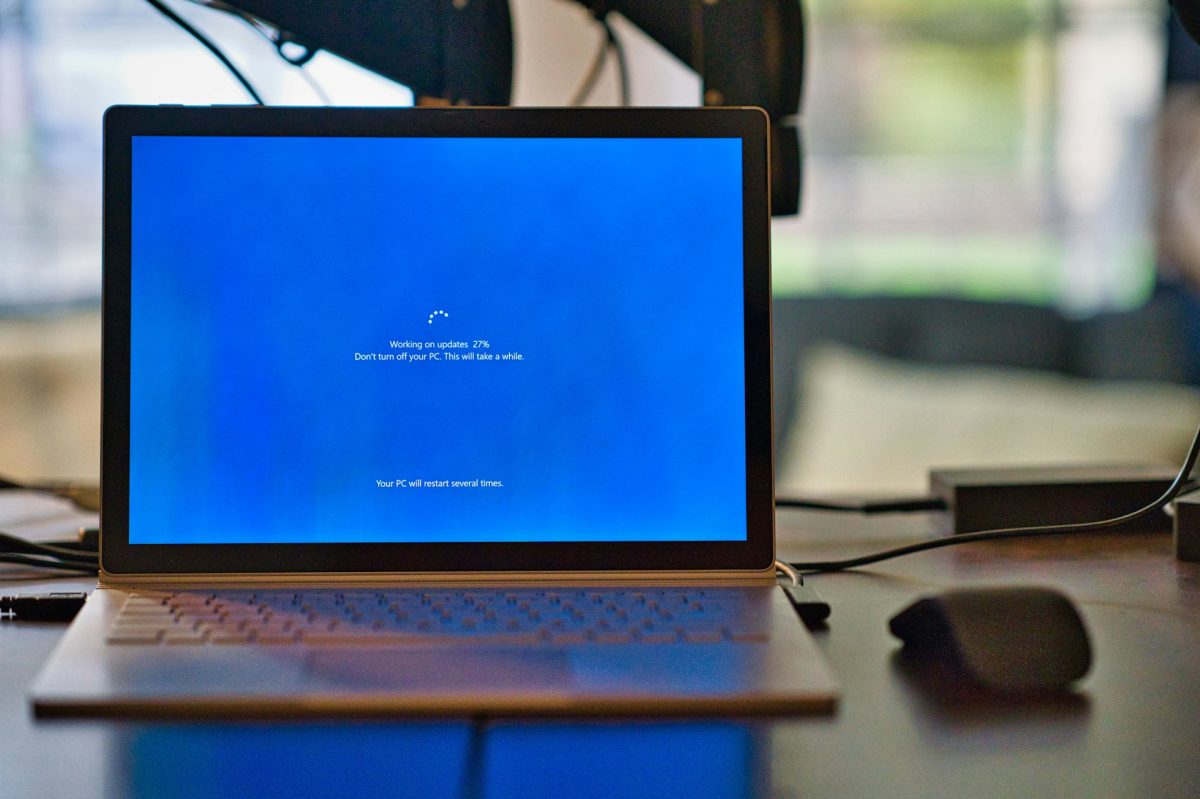
When your Windows PC freezes up, it can be a real headache. You’re in the middle of something, and suddenly, the screen locks up or stops responding. This can happen any time of year, but during the cooler winter months, it’s especially frustrating. In places like New Port Richey, Florida, we don’t get freezing temperatures, but winter still brings indoor heating and humidity changes that can cause computers to act up.
Whether your PC is slowing down, locking up, or just won’t do what you need it to, we know how unsettling it feels to be stuck. A reliable Windows repair service can help sort things out when problems start cropping up. Before that, though, it helps to understand what’s going on, what you can try on your own, and when it’s best to let someone take a closer look.
Common Reasons a PC Freezes When It’s Cooler Out
In Florida, we don’t have harsh winter conditions, but even a small drop in temperature or a shift in indoor air can change how your PC behaves. Heating systems may keep us comfy inside, but they also dry out the air and change how air moves through a computer.
When airflow is reduced, the internal parts of your PC, like the processor or hard drive, can get too warm. That extra heat can slow things down or even cause the system to lock up. It’s not always easy to notice at first, but small changes can build up over time and lead to a frozen screen or an unresponsive program.
Another thing that catches people off guard is dust. We see it a lot during the months when windows stay closed and fans run more often. Dust settles deep inside vents and fans, making it harder for warm air to escape. That buildup throws off the balance of how your computer keeps itself cool.
For older desktops or laptops, even a simple software update or a background app can push things over the edge if the system is already running tight on memory or disk space. These things all come together during winter when usage patterns shift and systems are under different types of stress.
Quick Things You Can Try Before Calling for Help
When your computer freezes, it’s tempting to panic or shut the whole thing down right away. But sometimes, a few small steps can give you clues or even get things moving again.
1. Close any programs that you don’t need open. Just reducing the number of apps running at the same time can lighten the load and stop the freezing.
2. Restart the computer in safe mode. This lets the system start with fewer programs running, so you can check whether a new update or a background process might be causing the trouble.
3. Unplug accessories you don’t need. Things like older printers, USB storage devices, or cameras can confuse the system or draw more power than it can handle at once.
These steps don’t fix every problem, but they can help rule things out. If the same issue shows up again, it’s probably not a simple glitch.
How Winter Affects Older PCs in Florida
Older devices often react stronger to seasonal shakes, even in a place like New Port Richey, where winter is mild. A computer that seemed fine over the summer might start giving trouble when the cooler months arrive.
One thing we run into often is overheating caused by indoor heaters drying out the air. That makes it easier for dust to move around and clog fans that already aren’t running like they used to. Changing how the computer is used at home, like leaving it running all day or using it on a soft surface like a bed, can also make problems show up faster.
During winter, we see a pattern with older PCs freezing more often when they haven’t been cleaned or updated in months. The mix of age, usage habits, and tighter settings leave the machine with very little breathing room. Even light activity can push things past the point where the system can keep up.
Minor maintenance earlier in the season could make all the difference. Changes like cleaning vents, installing updates, or checking internal storage can help give older systems more space to run.
Signs It’s Time to Call a Windows Repair Service
Not every computer problem needs outside help, but some signs shouldn’t be ignored. A few one-time freezes can happen now and then, but if you’re seeing problems more than once a week, it’s worth a closer look.
Watch for these signs:
• Your PC keeps freezing, even when you’re only doing one or two things
• The fans are loud or the case feels much hotter or colder than usual
• Files are missing, or the screen shuts off or flickers after the computer locks up
When any of these happen, the system could have a deeper problem that isn’t going to fix itself. Trying the same routines over and over won’t get you far and might even make things worse. That’s when expert diagnosis becomes the smarter move.
Tips to Keep Your PC Running This Winter
Staying ahead of computer freezing issues is a lot easier than trying to solve them after everything locks up. Don’t wait for your PC to feel sluggish or completely quit working.
Before problems begin, consider having a free diagnostic with repair done on your PC. The diagnostic is free when we do the repair, and you know what’s wrong before any work starts. Cleaning dust from vents and fans and installing important security or system updates can also help prevent issues.
If your computer is slow to respond or the fan sounds louder than usual, it’s worth checking. A small glitch now can lead to lost files or bigger problems later. Keeping things clean, avoiding overuse, and knowing when it’s time to call for support can make winter a lot less stressful for your Windows PC.
Get Expert PC Help in New Port Richey
When your PC continues locking up or running slow this winter, it may signal a deeper issue. Even a small fan problem or background software snag can point to something bigger behind the scenes. Once you’ve ruled out the usual fixes and the freezing persists, we’re here to help. Rely on our Windows repair service to pinpoint the problem and get your system back on track. At Avant Computers in New Port Richey, we are ready when you are.